
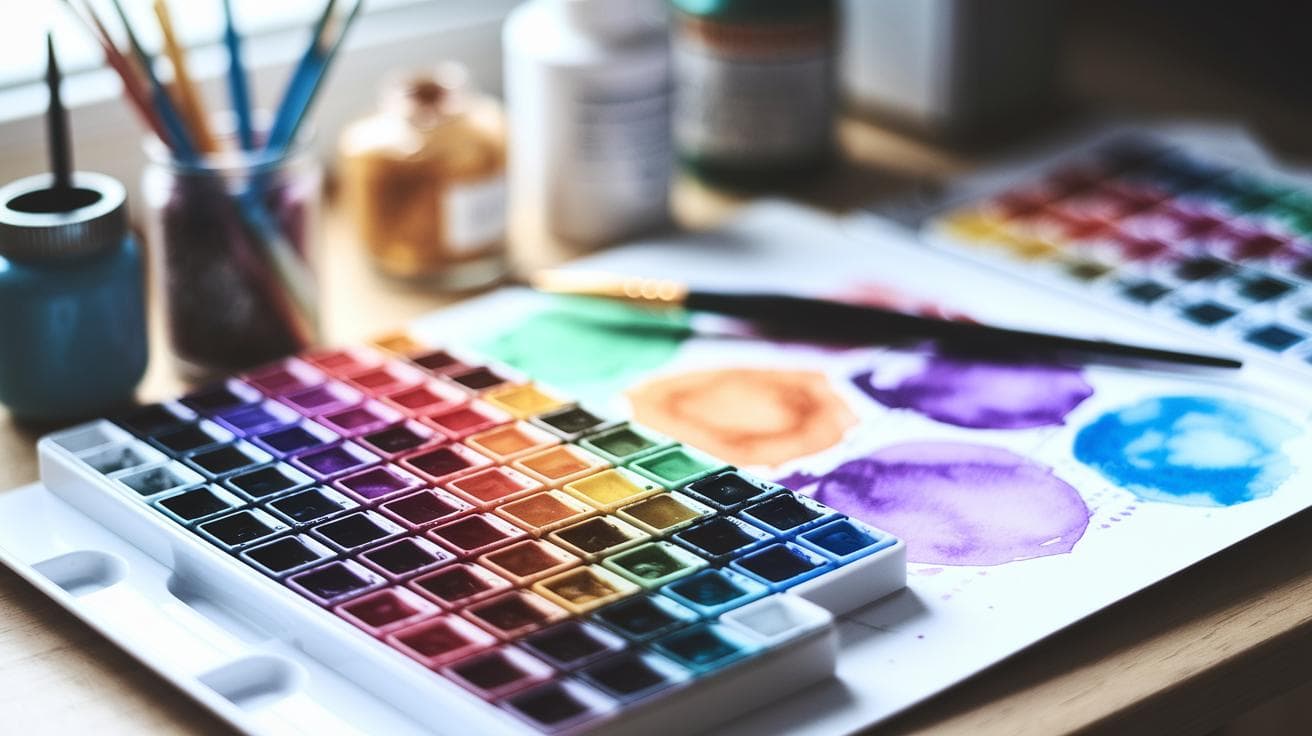
Have you ever glanced at a watercolor painting and felt a little jealous of those soft blooms and dreamy color bleeds? What if I told you there’s a way to skip the brushes but still capture that same glow?
Meet Midjourney AI, a machine learning tool (software that learns from examples) that hums behind the scenes, mimicking wet-on-wet gradients and luminous washes. Imagine the gentle spread of pigment, the smooth glide of color, without lifting a brush.
In this guide, we’re taking you step by step through simple text prompts that unfold into vibrant, paper-like artworks. You’ll learn how to shape your instructions for crisp edges, playful subjects, and that unmistakable watercolor magic.
Watercolor Reproduction with Midjourney AI: A Step-by-Step Guide

Watercolor painting always feels alive. You see soft gradients, blooms of pigment, and that glow when light skips across wet paper. Have you ever wondered if you could capture that magic without a paintbrush? Good news. Midjourney AI is an art-making tool that uses machine learning (software that learns from examples) and lets you do just that.
It’s all about prompts. Think of a prompt as a note to the AI – simple, clear, and ready to guide the digital brush. Here’s how to get started:
-
Write a base prompt
Start with something like
"Cute watercolor illustration of [subject], with bright and vibrant colors, white background."
This sentence sets the stage. It tells Midjourney AI exactly what vibe you want – clean sheet, popping hues, and that watercolor feel. -
Set the aspect ratio
Add -ar 3:4 to your prompt. A 3:4 frame fits most portraits and still-life scenes. It makes your image look like a real sheet of paper instead of a weird crop. No missing paws or half-skipped flowers. -
Apply -style raw
Including the raw style parameter helps the AI stay close to your words. It cuts extra flourishes so your watercolor stays pure and simple. You’ll get crisper color edges and more accurate results. -
Pick playful subjects
Try a joyful panda munching bamboo, a puppy chasing a ball, or a dolphin leaping from the sea. You can even add a friendly robot with a big grin. Specific actions and emotions give your prompts real personality. -
Refine your prompts step by step
Tweak colors – swap bright tones for pastels or test a new background. Want fewer artifacts? Toss in a quick note like "no smudges" to keep things neat. It’s like adjusting brush strokes until every edge feels just right.
Follow these steps and you’ll have a repeatable recipe for digital watercolor magic. Start with a clear prompt, lock in the ideal frame, and steer your style settings. Then layer on details, mix and match, and keep testing until you capture that dreamy glow and soft bloom. Next thing you know, you’ll have charming AI-generated watercolor art ready to share!
Advanced Prompting Techniques for Watercolor

-
Custom gradient washes
Have you ever wanted your sky to glow like a lake at dusk? Just type “sunset over lake –gradient 0.8.” You’ll see a smooth shift from peach to lavender, like that quiet moment when day whispers to night. Soft. Serene. Incredible. -
Wash intensity modifiers
You can crank up the drama with “–wash 1.5” for bold, juicy pigments. Or pull it back to “–wash 0.5” if you want a delicate, watercolor whisper. It’s like choosing how much water you add to your brush, totally in your control. -
Alternate aspect ratios
Craving a neat square? Go “–ar 1:1” for that classic look. Want a widescreen vibe? Try “–ar 16:9” for cinematic flair. Your scene, framed just how you like it. -
Combining style flags
Here’s a fun trick: lay in a dreamy background with “wet-on-wet,” then switch to “dry brush” for crisp, fine lines. The contrast pops, like pairing a soft pillow with a sharp pencil. It just works. -
Layering prompts for textural depth
Think of it as building a cake. First, “mossy forest –layer1” lays down that rich, wooded base. Then add “morning mist –layer2” for a veil of cool fog on top. Suddenly, you’ve got depth and texture you can almost touch.
Emulating Traditional Watercolor Textures in Midjourney AI

Have you ever wondered how to make AI art look like a real watercolor painting? In Midjourney, the trick is in what you name. When you ask for “smooth wet-on-wet,” it spreads soft, glowing clouds of color, just like a brush on damp paper. Then tell it “rough dry brush” and you’ll see tiny flecks where the pigment drags across the paper fibers.
You can even add “paper grain” or “granular pigment” to sprinkle in little dots. Mention “wet-on-dry” blending for those gentle edge transitions where a fresh wet wash meets a matte layer and creates a crisp outline. Toss in “AI color bleeding techniques” to let pigments wander, forming happy accidents, random blooms and spills that feel wonderfully organic. Oh, and calling out “paper texture emulation” gives you a faint, canvas-like finish that ties it all together.
Incredible. Here’s a quick layering tip: start with “wide loose wash effect with AI” to set a soft background mood. Then append “foreground petals – dry brush” to make your flowers pop and add depth. Next, blend in your grain and bleed terms for that final touch. It’s almost like making a perfect playlist, lay the base track, then drop in the vocals.
Adjusting Midjourney AI Settings for High-Resolution Watercolor Renders

Ever wanted a crisp, watercolor-style image that really pops? Midjourney has a few simple flags you can tweak, and trust me, they make a world of difference.
Aspect ratio (–ar) is your first stop. It’s like choosing your canvas size. Use –ar 3:4 for that classic portrait vibe, or switch to 1:1 for a square look or 16:9 for a cinematic feel.
Then there’s –style raw. This keeps your image true to the prompt, kind of like preserving every brushstroke. Drop it if you want to lean into Midjourney’s own watercolor flair with –stylize.
You can pick a version (–v) and quality level (–q) to balance detail and speed. Version is like choosing your Midjourney engine, newer ones usually pack more punch. And –q 1 is a good start; bump it up if you need extra detail. Check out the midjourney creative mode settings for the latest info.
Ready to sharpen things? Try –upbeta or –hd for finer textures. It’s like giving your art a gentle polish.
Feeling adventurous? Add a dash of –chaos (around 10–25) to shake up textures and surprises. And if you really love a layout, lock it down with –seed so you can revisit the same look later on.
| Setting | Parameter | What It Does | Recommended Value |
|---|---|---|---|
| Canvas Size | –ar | Sets the frame shape (aspect ratio) | 3:4 (or 1:1, 16:9) |
| Style Fidelity | –style raw | Keeps your image true to the prompt | Include for accuracy |
| Engine Version | –v | Selects the Midjourney model version | Latest (see creative mode) |
| Detail vs. Speed | –q | Balances quality and render time | 1 (higher for more detail) |
| Texture Twists | –chaos | Adds randomness to textures | 10–25 |
| Repeatable Shot | –seed | Locks in your image layout | Any number you like |
Every flag is like a brush or tool in your AI art kit. Start with a 3:4 canvas, keep –style raw for prompt loyalty, pick your version and quality level, then tweak chaos and seed for fun surprises. And there you go, your own high-res watercolor masterpiece, ready to share!
Enhancing Watercolor Aesthetics in Midjourney with Color and Post-Processing

Ever wondered how to give your Midjourney watercolor images that gentle, dreamy vibe? Tweak your palette with pastel blues or soft greens for a peaceful mood, or swap in brighter hues for a playful twist. White backgrounds keep the focus on your main subject, while a pale-wash sky or minimalist meadow adds just enough atmosphere without overcrowding the scene.
Try adding words like serene or whimsical to nudge the AI toward soft tonal variations. Call out pigment bloom (where colors spread out like wet-on-wet paint) or color-bleeding techniques so hues gently merge and flow. You can even layer descriptors, think “soft wash” over “light wash”, to guide how each pigment lands. And a quick note like “no harsh lines” will keep edges fuzzy and dreamy.
Got a spark of color in mind? Pin a bright coral blossom against calming greens for a pop that feels like sunrise peeking through leaves. It adds emotional warmth and depth. A short narrative cue, say “morning dew on petals”, can hint at a story without bogging down your prompt.
After you generate the image, a simple color grade in your favorite editor can boost contrast and vibrancy. For more tips on fine-tuning colors, check out color grading tips for Midjourney ai art.
Troubleshooting and Iterative Refinement for Midjourney AI Watercolor Creations

Have you ever wondered how to stop your AI watercolor washes from looking muddy? When you’re refining your watercolor-style images in Midjourney (an AI art tool that brings ideas to life), try using bracketed markers like [soft edge] (for gentle fades) or [granular pigment] (to add speckled texture). And don’t forget negative prompt cues, these are instructions that tell the AI what to leave out, like –no smudges. You’ll almost feel the quiet buzz as each layer locks in place.
Next, tuck this tip under your “Refine step-by-step” or “Advanced Prompting” section. That keeps all your tweak tricks in one spot, no more hunting through notes or repeating the same advice.
Final Words
in the action, we explored watercolor’s glow and transparency, then walked you through five setup steps: base prompt, aspect ratio, style raw, sample subjects, and iterative tweaks.
We covered crafting detailed prompts, mood-driven palettes, texture emulation with wet-on-wet and dry brush, and layering for depth.
We reviewed key Midjourney flags, color enhancements, post-processing tips, and troubleshooting tactics to refine each render.
Now you’re set to dive into replicating watercolor painting in Midjourney ai with fresh confidence and creativity. Enjoy the creative flow!
FAQ
Can AI generate watercolor paintings?
AI can generate watercolor paintings by using generative models like Midjourney, Stable Diffusion, or Adobe Firefly with prompts specifying transparency, soft edges, and subtle color bleeding.
How can I replicate watercolor painting in Midjourney AI?
To replicate watercolor painting in Midjourney AI, craft prompts like “Cute watercolor illustration of [subject], bright vibrant colors, white background,” use –ar 3:4, –style raw, and iteratively refine with sample subjects.
What are effective Midjourney watercolor prompts?
Effective Midjourney watercolor prompts describe detailed subjects and emotions, specify pastel or targeted palettes, choose backgrounds like pale skies or minimal scenes, and set aspect ratios (1:1 or 16:9) to evoke realistic watercolors.
How do I convert a photo into a watercolor using AI?
Converting a photo into a watercolor using AI involves feeding the image to tools like Midjourney or DALL-E with prompts such as “photo turned into delicate watercolor, soft wash, vibrant hues,” then tweaking style and color bleed settings.
How can I use AI to replicate art or make an image look like a painting?
AI replicates art or makes images look like paintings by analyzing texture, color, and brushstroke patterns, then re-creating them through models like Stable Diffusion or Leonardo AI with prompts that emphasize material qualities and style.
What is the golden rule of watercolor painting?
The golden rule of watercolor painting is to start with light washes and build darker tones gradually, preserving paper-white highlights for luminosity and maintaining the medium’s signature transparency and soft-edge transitions.
Which AI tools support watercolor generation?
AI tools supporting watercolor generation include Midjourney, Stable Diffusion, Adobe Firefly, DALL-E, ChatGPT with plugins, and Leonardo AI, each offering prompt-based controls to emulate watercolor textures, color bleeds, and brushstroke styles.
How can I create watercolor effects in Photoshop with AI?
In Photoshop, you can create watercolor effects using AI features like neural filters or plugins, apply water wash and texture overlays, adjust brush settings for granular pigment simulation, and use layer blending to mimic real watercolor depth.