
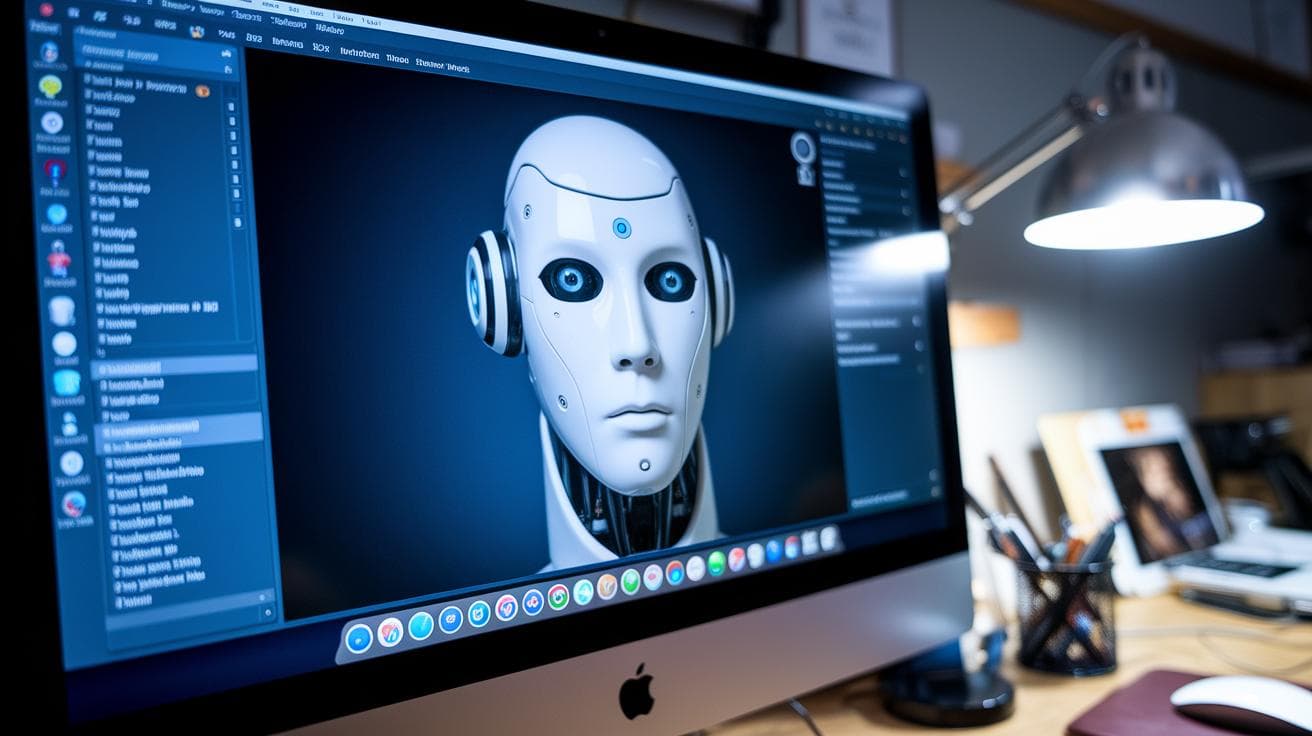
Have you ever looked at an AI (software that learns from data) image from Midjourney and felt the textures fall flat? It’s like baking a cake without sugar – the wood grain blurs together and the metal never glints.
But, you know, if you give the AI a clear prompt (your instructions), you can steer it to nail every bump, glint, and fiber. It’s like having a pro photographer whisper in the machine’s ear. Incredible.
In this post, we’ll walk through four key elements – subject, material, context, and texture keywords – that spark photorealistic (true-to-life) detail in every image. Imagine picking out each thread on a worn leather jacket or sensing the smooth reflection on polished chrome. Then your vague ideas won’t stay fuzzy lines – they’ll leap off the screen with crisp clarity.
You’ll even save GPU time and cut down on guesswork. Your everyday thoughts turn into lifelike art faster than you might think.
Core Elements of a Photorealistic Texture Prompt

Ever noticed how a clear outline for photorealistic texture prompts feels like the quiet hum of well-oiled gears? It’s the blueprint that guides your AI, making every wood grain, metallic glint, or fabric weave pop with life.
Imagine cooking without a recipe. Textures get muddled. But when you break it down into simple steps, flavors, or in our case textures, stay true. And hey, you end up saving precious GPU time by cutting out guesswork.
When you tweak your prompt again and again, adding crisp reference shots, it’s like fine-tuning a camera until the details jump off the screen. You’ll see more realism and fewer wasted cycles.
Here are the four pillars that keep your photorealistic texture prompts solid and reliable:
- Subject or object: what you’re imaging, like a cracked marble slab or a rusted iron hinge
- Material focus: the main substance, wood, metal, stone, fabric, leather, etc.
- Environment context: where it lives, a mossy forest floor, an industrial workshop, or a sunlit studio
- Texture descriptors: key terms like fine grain, high resolution, metallic sheen, or natural bumps
Each part fits into its own placeholder. Swap out materials or scenes without rewriting the whole prompt. Simple.
Here’s how it could look:
/imagine prompt: {subject} // {camera angle placeholder} // {lighting placeholder} // {texture keywords placeholder} // high resolution //ar 4:3 –q2 –s600
Give it a spin with midjourney prompt examples for landscapes to see how changing the scene tweaks the mood. See ‘Midjourney Parameters’ for exact switches and ‘Lighting & Camera’ for art direction cues.
Midjourney Parameters for High-Fidelity Texture Creation

Imagine tuning each detail of a texture until you can almost feel it under your fingertips. Have you ever wanted to highlight every grain in a wooden plank or catch that faint glint of metal? With Midjourney (an AI that turns text prompts into detailed images), you get direct control over the look and feel of your materials.
First up is the –ar parameter. That sets the aspect ratio (the ratio of width to height). A 16:9 frame feels like a wide stone wall, while 4:3 gives you a cozier tile pattern, perfect for close-up shots.
Next, –stylize controls how much artistic flair you add. Think of it as the brushstroke intensity: setting it around 500 to 750 keeps things rooted in photorealism. And if you want to strip away any extra enhancements, add –style raw to keep your texture pure and natural.
The –q option (quality level vs render time) cranks up detail but takes a bit longer to process. When you set –q to 2, Midjourney really digs into every bump and groove. It’s worth the wait if you need crisp, lifelike surfaces!
Locking in –seed with any fixed integer freezes the random choices the AI makes. That means you can come back later and get the same baseline result, no surprises. Pairing it all with version quality v5 makes textures feel smoother and more lifelike, and flipping on –hd adds extra pixels and depth for those super close-up views.
| Parameter | Purpose | Recommended Value |
|---|---|---|
| –ar | Aspect ratio framing for textures | 16:9 or 4:3 |
| –q | Detail level vs. render time | 2 |
| –stylize | Degree of artistic styling | 500–750 |
| –style raw | Minimize non-photographic enhancements | , |
| –seed | Repeatable randomization | Any fixed integer |
| –hd | High-definition rendering mode | Enable |
Layering these settings gives you a solid base for balanced, high-fidelity textures. Next, play around with different frames and values until you land on that perfect finish.
Ready to see your textures come alive?
Lighting and Camera Prompts for Realistic Material Textures

Lighting can be the magic touch that makes textures come alive. Try “golden hour lighting ai” to bathe wood or skin pores in a warm, late-afternoon glow. Want something softer? “Soft diffuse studio light” gives even, gentle highlights on fabrics. A little rim lighting, sorry, I mean a soft outline, sketches the edges of stone or metal so they look almost touchable. For subtle depth, use “sharp shadows with ambient occlusion effect (soft shadows in tight spots)” to tuck tiny shadows into crevices. And for a dash of film flair, add “cinematic lighting prompts” to boost drama while keeping things real. Learn more about shadow control and contrast in using shadow and contrast techniques in Midjourney images.
Next, let’s talk about cameras. Want every bump or thread up close? Use “macro lens, shallow depth of field (camera setting for super-close shots with a blurry background)” so your subject pops and everything else melts away. If you’re after that creamy blur behind a sharp subject, go for “telephoto lens, f/2.8 (camera setting that zooms in from far away)”. Don’t skip “hdr feel midjourney (high dynamic range, boosting light and dark areas)” if you crave extra pop in highlights and shadows. And for shiny spots, try “macro lens effect reflections” to catch glints on wet stone or polished metal.
When you mix lighting and camera cues, good textures turn into stunning ones. Imagine “volumetric lighting prompts (light beams you can almost see)” paired with a “macro lens, shallow depth of field”, you’ll spot dust motes dancing in sunbeams over rough wood. Then layer in the ambient occlusion effect (soft shadows in tight spots) to sink shadows into every crevice. Finish with “hdr feel midjourney” to punch up contrast. The result? Textures that look like they stepped right out of a pro photo shoot.
Texture-Focused Keywords and Negative Prompting in Midjourney AI Art

Nail down your texture details by using material-specific tags in Midjourney. For wood texture AI art, try weathered grain or knotted oak so you can almost feel the rough lines under your fingertips. Metal comes to life with polished sheen or brushed highlights, giving off that sleek, industrial vibe. Stone textures pop with coarse marble or granite cracks, adding rugged depth to any scene.
So, have you ever wondered how light dances across a surface and makes it feel real? That’s where PBR – physically based rendering (a way to make surfaces react like real materials) – really helps. A normal map (it shows how light bends over bumps) captures tiny crests and valleys. A bump map effect punches up ridges, making surfaces feel tactile. And if you want soft translucence, like candle wax or smooth marble, you’ll love subsurface scattering (it simulates light passing through a surface).
And let’s talk shine. Use the roughness parameter to dial glare up or down. Then point out bright spots with specular highlights controls so reflections pop just right, kind of like spotting sunlight glint on a still lake.
Sometimes too many effects can muddy your textures. That’s when negative prompts come in handy. Add “no blur, no watercolor, no illustration style” to keep everything razor-sharp. You can also include “no sketch, no cartoon, no abstract” to lock in pure realism. These tags basically switch off any fancy art filters, leaving you with clean, high-fidelity surfaces that look like they belong in a pro showcase.
Iterative Refinement and Upscaling Strategies for Texture Detail

Iteration is your best friend when you want every bump and groove to really stand out. Start by spinning up a few prompt variations, those are the little instructions you give the AI, and then hop into Midjourney’s Vary Region editor to fix things like repeating bumps or odd seam lines. It’s like tuning a guitar: you pluck the strings that sound off until every note rings true. And bonus, you’ll save GPU minutes (that’s computer processing time) instead of running full re-renders.
Once your rough draft feels right, let Midjourney’s built-in upscalers take over. Upscale Subtle keeps all those tiny details intact, think of it like a light polish that leaves the fine grain in place. Upscale Creative, on the other hand, can rebuild small areas if you’re craving a fresh twist. You can also flip between the –upbeta and –uplight switches to find the sweet spot between speed and finish. Pair these with version quality v5 renders and a high-res output setting, and you’ll get those crisp, touch-worthy textures you’re after. Oh, and don’t forget to peek at the Midjourney Parameters for other rendering-mode tweaks that can fuel your upscaling experiments.
Sometimes, though, you’ll want an extra jolt of clarity, that’s when external upscalers shine. Tools like Topaz Gigapixel AI and Krea.ai can push sharpness past Midjourney’s native limits, giving you near-photographic detail at larger sizes. I’ve seen folks take a subtle leather bump, run it through Topaz, and end up with pores so real you almost feel them under your fingertips. These apps slide right into your pipeline, boosting contrast and depth without turning your work into a noisy mess.
Next, move into Photoshop for that final touch. A quick color-balance tweak, a gentle contrast curve, and a light bump-map overlay tie everything together. You might even whisper in a bit of noise or mask the edges to seal those seams. In the end, it’s the mix of Midjourney’s AI smarts and some old-school photo editing that makes your textures truly sing.
Troubleshooting Photorealistic Texture Generation in Midjourney AI Art

Ever ended up with a countertop that looks more like a blurry painting? Yeah, me too. But a few simple tweaks can turn that into a crisp, photoreal texture you’ll want to show off.
First, watch for common artifacts – fuzziness, odd color shifts, or blocky pixels. For example, a granite countertop washed out with a green haze around the rim. Not exactly kitchen goals.
Next, tweak stylize (art style intensity) and seed (randomness starter) settings (see Midjourney Parameters). Think of seed like picking the same lottery numbers; it brings back the same result. Try adding --stylize 600 --seed 42 to reveal those sharp marble veins.
Then, play with prompt-weighting to make key details pop. Prompt-weighting boosts specific words, so your main features stand out. A handy template: "fine grain":1.2 "background":0.8 keeps every wood knot front and center (see Prompt-Weighting Techniques).
Before you hit high-res, do a low-res test render (see Lighting & Camera). Run at 512×512 first – you’ll spot ghosting (weird double images) early. Once it looks solid, bump up to 1024×1024 for your final render.
A little patience, a couple of test runs, and suddenly your textures look so real you’ll swear you can reach out and touch them.
Final Words
In the action, we built a solid prompt skeleton, subject, material, environment, texture keywords, and saw how reference images sharpen realism. Then we dialed in Midjourney parameters like –ar and –stylize to balance fidelity. Lighting cues and camera details brought out depth, while material-specific terms and negative prompts kept it crisp. Finally, iterative tweaks, upscaling strategies, and quick fixes in Photoshop helped nail consistency.
Embracing these steps sets you on track for stunning AI textures, including how to produce photorealistic textures in Midjourney ai art. Get ready to see your concepts come alive with vibrant detail!
FAQ
How do I produce photorealistic textures in Midjourney AI art on my iPhone?
Producing photorealistic textures in Midjourney AI art on an iPhone starts with a clear prompt skeleton—{subject}, {material}, {environment}, texture keywords—plus version v6, high-res settings, and reference images.
What prompts generate photorealistic images in Midjourney V6 or Stable Diffusion?
Generating photorealistic images in Midjourney V6 or Stable Diffusion relies on specific lighting cues (golden hour, rim lighting), lens details (macro, depth of field), precise texture descriptors, and balanced stylize values.
How can I make Midjourney produce more accurate, realistic images?
Making Midjourney produce more accurate realistic images involves concise prompts, fixed seeds (–seed), quality boost (–q 2), mid-range stylize (500–750), sharp focus keywords and iterative refinements.
Which AI platforms generate photorealistic art among Midjourney, DALL-E, Stable Diffusion, Adobe Firefly, ChatGPT, and Leonardo AI?
These AI platforms—Midjourney, DALL-E, Stable Diffusion, Adobe Firefly, ChatGPT (with image plugins), and Leonardo AI—can generate photorealistic art when driven by detailed prompts, realistic lighting and high-resolution settings.
Where can I find Midjourney example images for inspiration?
Finding Midjourney example images for inspiration means exploring the official Discord showcase, community galleries, and online resources like midjourney prompt examples for landscapes (https://cms.scalebytech.com/?p=5828) to study prompt outcomes.