
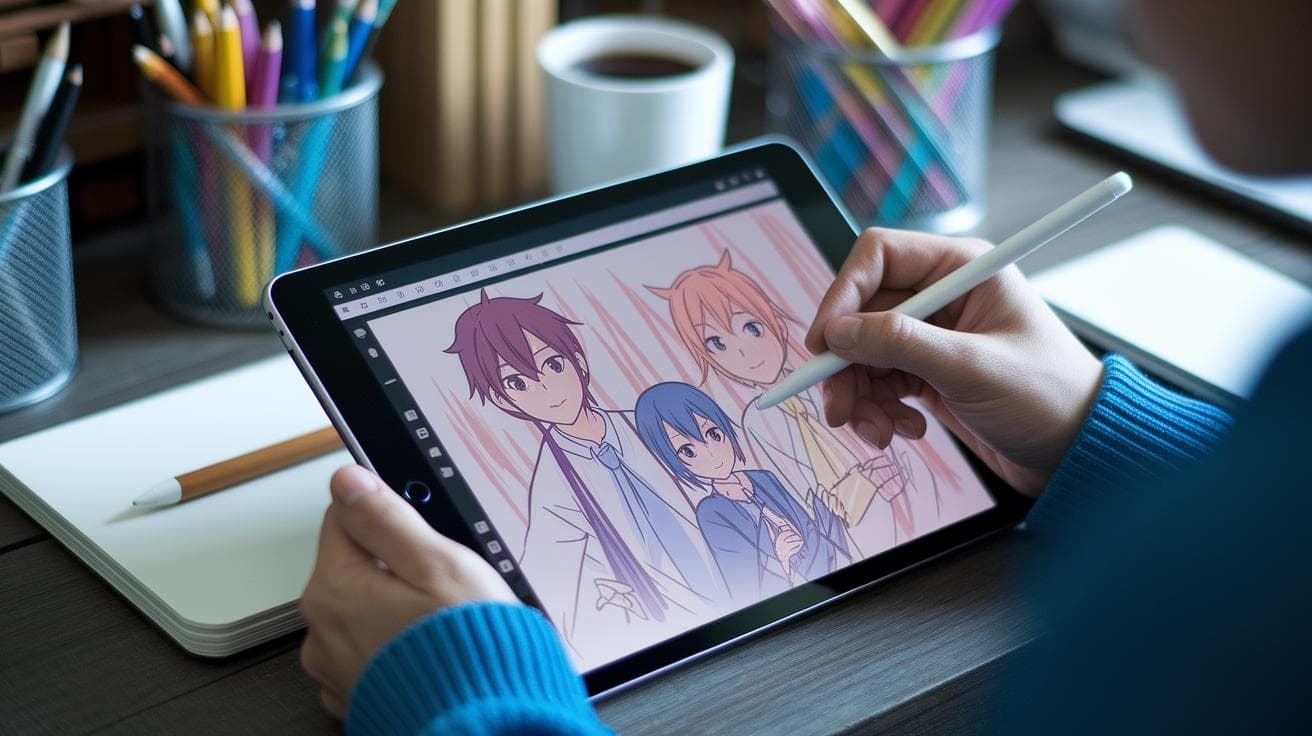
Have you ever stared at a vivid anime still and thought, How did they do that? It’s almost magic. But it’s really just a neat trick with words and code.
Midjourney AI (a program that turns your text into images) has a special Niji 6 mode humming quietly on your GPU (graphics card that draws those images). This uses machine learning (software that learns from data). You type a simple prompt, then in minutes you’ll be peeking into a world straight out of an anime.
Next, we’ll guide you step by step. First, pick the right time of day – dawn’s soft glow or a fiery sunset. Then set the mood: maybe calm and misty or electric and bold. Finally, choose your color palette – pastels, neon brights, whatever fits your vision. You’ll add flags like -niji 6 and -ar 16:9 (those are just settings that shape your image) – simple but powerful.
Once your prompt is ready, hit generate. Boom – your scene appears. Then upscale it, which is like zooming in on a painting to reveal every brushstroke. Remix it, too, tweaking small details until it sparkles under your eyes.
Ready to see your anime dreams in HD? Let’s dive in!
Step-by-Step Guide to Crafting Anime Scenes in Midjourney AI

Imagine hearing the soft buzz of your GPU as you get ready to paint vibrant anime worlds. With just a few quick steps in Midjourney’s Niji 6 mode, you’ll be sketching out dynamic scenes in no time. Stick with me, and you’ll learn how to write prompts, tweak settings, and up your visuals until they shine.
First, open Discord. Type /settings into any chat, then choose Niji Model V6. Boom, you’re in the right engine for anime-style magic.
Next, write a prompt that calls out the time of day (like “twilight”), the mood (“mysterious”), the color scheme (“soft purples and blues”), the setting (city rooftops or bamboo forest), and what your characters are doing. Think of it like painting with words.
After that, add these flags to your prompt:
–niji 6
–style raw (for unfiltered anime detail)
–stylize X (X is how dreamy or realistic you want it)
–v 6 (that’s Version 6)
–q 2 (for better quality)
–ar 16:9 (wide-screen look)
You might also toss in negative flags, --no blur or --no watermarks, to keep your frames crystal clear. Ever wondered why some images feel so sharp? This is why.
Hit enter and watch four variations pop up. Scan them, pick your favorite, and note what you love about it. Then, if you want to blend two or more images (or even your own sketches), use /blend. Check out the midjourney image blending tutorial for a deeper dive: https://cms.scalebytech.com/?p=5998.
Ready to refine? Click the U buttons under your chosen thumbnail to upscale it, or try --upbeta (Remaster) to sharpen every line. You’ll feel the difference, each stroke jumps off the screen.
And if you’re itching for fresh takes, hit the V buttons on any thumbnail. New variations will appear, giving you more shots to tweak with new prompts or different flags.
Keep a quick journal of each prompt and setting combo. That way, you’ll see how shifting --stylize or --ar gives you different vibes. And when you test both upscaling and Remaster routes, your final art will be crisp and publication-ready.
Tip: Default Parameter Settings
| Parameter | Default Value |
|---|---|
| Model | Niji Model V6 |
| Style | raw |
| Stylize | 1000 |
| Version | 6 |
| Quality | 1 |
| Aspect Ratio | 1:1 |
Choosing the Right Midjourney Model and Parameters for Anime Style Scenes

Have you noticed how Midjourney’s anime styles have evolved? Niji 5.2 had playful sub-styles – cute, expressive, scenic. Now Niji Model 6, powered by Spellbrush (a tool for cleaner linework), brings sharper lines and richer colors. It’s like swapping a soft pencil for a precision pen.
With just a few flags, you call the shots in your anime scene. Use –niji to pick your engine. Add –style raw to drop the extra smoothing for crisp line art. Then –stylize turns up or tones down the anime flair – your choice.
Want a cinematic widescreen moment? Try –ar 16:9. Craving a tall, vertical vibe for mobile comics? Go with 9:16. And –chaos? Think of it as seasoning – low chaos keeps things tidy, high chaos throws in surprises. Master these basics, and your prompts will pop.
If you’re ready to go deeper, weights can help highlight what matters most. Slap “hero::3” on your main character to give them center stage. Tag “background::0.5” and let the scenery fade back. It’s like shining a spotlight where you want it.
Tiny tweaks can totally shift the mood. Low –stylize values deliver sharp, clean panels. Crank it up, and you get painterly flourishes. Pair a moderate –chaos with 9:16, and you’ll feel the energy in every vertical frame. Testing different combos is half the fun.
| Parameter | Purpose | Recommended Settings |
|---|---|---|
| –niji | Choose anime engine | 6 |
| –style | Level of refinement | raw |
| –stylize | Aesthetic intensity | 50–2000 |
| –ar | Frame ratio | 16:9, 9:16 |
| –chaos | Variation degree | 0–50 |
Next, play with aspect ratios, chaos levels, and styling flags to see how your art evolves.
Mastering Scene Composition Techniques in Midjourney for Anime

Want your anime scene to feel instantly balanced? Try the rule of thirds – place your main subject at one of the four intersection points. Imagine a lone swordswoman at dawn standing on the lower right. That simple story beat gives Midjourney AI a clear starting point, so it arranges the background and characters in harmony.
Next, you’ll add depth by layering foreground and background. First, generate your character as its own image. Then write a separate prompt for the setting – maybe a misty valley or ancient temple ruins. Finally, use the /blend command to put them together. It’s like stacking clear sheets of artwork, and the hero stays sharp against a sweeping backdrop. Check out the midjourney image blending tutorial for more details: midjourney image blending tutorial.
Ever notice how photos blur the background to highlight the subject? You can mimic that with your prompt by adding shallow focus or soft bokeh. For example: "ancient shrine, shallow depth of field, moonlight glow, –ar 16:9 –v 6." That gentle blur on the trees guides your eye right to the character, just like a real camera lens would.
Then, experiment with angles to boost drama. A low-angle shot looking up at a mech pilot makes them feel huge and heroic. Or try a bird’s-eye view to show motion and scale. Something like "low-angle shot of mech pilot, dramatic clouds, dynamic wide shot" can take a static image and turn it into a mini action scene. Incredible.
Crafting Dynamic Prompts for Anime Lighting and Color in Midjourney

Lighting and color can make or break your anime scene. Have you ever wondered how a simple prompt tweak can change everything? In Midjourney, it’s all about picking vivid details like time of day, weather, gradient skies, and your color palette. It’s, um, like painting with words.
Since Niji mode (the anime style preset inside Midjourney) handles the overall look, you just dial in mood, color contrasts, and shadow play. Think dawn or midnight, mist or snow, soft glow or high drama. Then watch your scene come alive.
-
Prompt: “riverside park in autumn at dawn, golden mist over water, falling red and orange leaves, soft reflections, –niji 6 –style raw –stylize 800 –ar 16:9”
Annotation: You get warm sunrise tones with a gentle haze. The falling leaves pop in red and orange, and soft reflections on the water give a cozy fall vibe. -
Prompt: “snowy mountain village at midnight, pale moonlight casting long blue shadows, lanterns glowing amber, crisp air, –niji 6 –style raw –stylize 1200 –ar 16:9”
Annotation: Picture a quiet village under moonlight (pale blue shadows stretching across fresh snow). Amber lanterns add pockets of warmth against a cool, crisp night. -
Prompt: “neon-lit cityscape at dusk, rain-slick streets reflecting pink and teal signs, high-contrast cel shading, dark alley silhouettes, –niji 6 –style raw –stylize 1000 –ar 16:9”
Annotation: Bold neon pink and teal bounce off wet pavement. Deep blacks cut sharp silhouettes for that classic cel shading energy.
Next, if you want an extra polish, try out these color grading tips for Midjourney ai art: https://cms.scalebytech.com/?p=6405
Maintaining Character Consistency and Expressive Poses in Anime Scenes

Ever open a scene and notice your hero looks a bit off? Locking in traits with –cref (short for character reference) keeps them on point, like dialing in a familiar coffee blend. It fixes details – hair color, eye shape, that battle scar – so they feel alive, you know? It feels a bit like hearing the soft hum of Midjourney (an AI image generator) as it clicks everything into place.
Then you add a style reference file with –sref (style reference). It lays down the vibe – soft, everyday strokes or sharp, action-packed lines. Think of it as setting the lighting and soundtrack for your character. Each pose ends up echoing your vision.
-
Prompt:
/imagine prompt young swordswoman standing in a misty bamboo grove, long raven hair, striking teal eyes, scar on left eyebrow --cref swordswomanRef --style raw --stylize 800 --ar 16:9
Here we lock in her raven hair, those striking teal eyes, and that eyebrow scar. The tool holds onto these details so she stands out against any backdrop in that foggy bamboo grove. -
Prompt:
/imagine prompt mech pilot soaring above neon city, determined grin, dynamic low-angle shot --sref actionStyleRef --style raw --stylize 1000 --ar 16:9
With actionStyleRef, you get bold outlines and sharp shading – perfect for high-flying mech drama. Every punch pose and swooping dive bursts with the same fierce swagger.
Pair clear trait keywords with expression cues – like “soft smile” or “furrowed brow” – and these settings become a powerhouse combo. Characters stay on model, their faces nail the right emotion, and their poses pop with dynamic energy. Have you ever imagined an AI storyboard that just gets you? This is it.
Refining and Upscaling Anime Scenes for Final Delivery

Once you find the version that nails your scene’s vibe and layout, click the U-buttons under its thumbnail to make it bigger. You can also add –upbeta (that’s Remaster mode) to sharpen lines and boost resolution. See any tiny dots? Turn on denoising (it cleans up little noise) to tidy the image.
Next, export your render, Midjourney gives you a high-res JPEG or PNG. Then drop it into Photoshop or your favorite editor for a quick spa day: copy-paste tweaks, cleaning up vector lines, or pulling out the line art. Vector lines (shapes that scale up without getting blurry) let you stretch or shrink bits without losing sharpness.
Ever wondered how a quick contrast tweak can bring a scene to life? A fast pass on contrast and levels can make shadows feel deeper and highlights pop. Want smoother fades? Try selective masking to blend areas the way you like. It’s like mixing paint, effortless and oh-so-satisfying.
Need crisp edges or assets for print? Convert key line art into vectors and tweak the stroke weight until every leaf and silhouette snaps into focus. That extra care gives your scene a final polish.
If you want even more shine, head back to the V-buttons for fresh variations or play with your denoising settings again. Then rerun the upscale and Remaster steps. It’s a simple loop, but wow, does it make your artwork stand out.
Leveraging Community Resources and Batch Workflows

Discord can feel like a buzzing creative room where anime artists share ideas, swap prompts, and spark fresh inspiration. Have you ever jumped into a channel and felt the energy of a community cheering you on? That’s exactly what these servers offer.
And if you’re curious about Midjourney (an AI art tool that turns text into images), there are entire Discord servers dedicated to anime scene design. You’ll see style breakdowns, color palettes, and friendly prompt feedback in real time.
Then there’s batch prompt generation (the list of instructions you feed the AI). By using bots or importing text files, you can launch dozens of prompt variations with a single command. It’s like flipping a switch on a conveyor belt that hums as new ideas roll out.
When you share your work in critique channels for anime art, peers dive into your composition, lighting, and wording. They’ll point out tiny tweaks, you know, a slight color shift or a mood change, that can transform your scene.
Here’s how to get started:
- Join Discord anime AI communities focused on Midjourney to compare scene layouts and color palettes on the fly.
- Use bots or import text files for batch prompt generation so you can produce dozens of variations in one go.
- Add context when you share prompts, scene setup, flags used, and desired mood, to get feedback that hits the mark.
- Post in anime art critique channels where fellow creators suggest composition, lighting, and prompt tweaks.
Next, collaborating with other artists tightens your workflow. You’ll notice how a simple prompt change can reshape an entire concept. And with regular feedback, you’ll level up faster than flying solo ever could.
Final Words
In the action, you’ve seen every step, from setting up Niji 6 in Discord to blending elements, tuning prompts, and upscaling frames.
We covered model options and key flags, plus scene composition tips for depth and cinematic flair.
You learned how precise lighting, color prompts, character consistency, and external edits bring anime art to life.
Community servers and batch workflows speed up feedback and iteration.
Embrace these best practices as you explore how to design anime scenes using Midjourney ai. The results are yours to shape, happy creating!
FAQ
Can Midjourney create anime?
Midjourney can create anime-style art by selecting its specialized Niji model (via /settings or --niji 6) and writing descriptive prompts, delivering multiple variations for fast iteration and vibrant scene options.
How to create anime art using AI?
To create anime art using AI, pick an anime-focused engine like Midjourney’s Niji, craft detailed prompts describing mood, characters, and colors, then refine results with iterations and blending commands.
Can AI create anime videos?
AI can create anime videos by producing frame-by-frame art with tools like Runway or Ebsynth and stitching frames into animations. A few manual tweaks ensure smooth motion and consistent style.
Do anime artists use AI?
Anime artists use AI to draft sketches, explore vibrant color palettes, and generate backgrounds. They polish AI outputs by hand, blending personal flair with AI’s quick suggestions for richer workflow.