
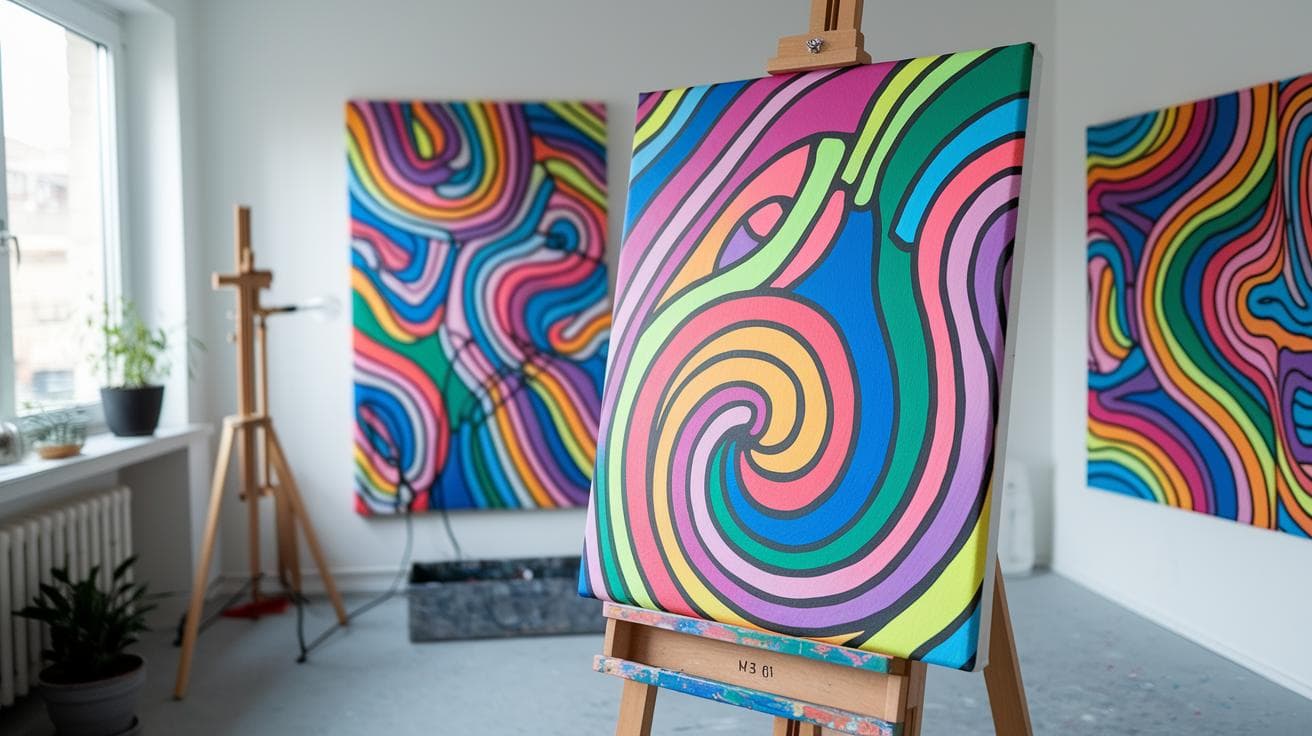
Ever stared at a blank canvas, waiting for that magic moment? I’ve been there, tapping my pen, watching the minutes tick by, you know? It’s like your brain hit pause.
Then the Google Gemini AI Image Generator steps in. It hums softly like a coffee grinder and transforms your simple prompts into crisp marketing shots or bold abstract art. No code. No fuss.
In this post, we’ll dive into how Gemini can light up your creativity and speed up your design flow. Ready to see it in action?
Key Features & Overview of the Gemini AI Image Generator

Have you ever needed marketing visuals, character art, or a quick digital poster? The Google Gemini AI Image Generator makes all that feel effortless. It hums quietly in the background as it turns your ideas into images, in storyboards, ads, or even your daily snaps. By default, it outputs at 1080 × 1920 px, but you can zoom up or down by tweaking the resolution values in the “Fields – Set Values” node before you hit run. Tall poster? Square avatar? No extra coding needed.
| Model | Description | Recommended Use |
|---|---|---|
| flux | A go-to model that balances speed and quality | Everyday scenes, marketing ads |
| kontext | Enhances context and fine details | Storyboards, detailed renders |
| turbo | Ultra-fast generation with a slight dip in detail | Quick previews, batch tests |
| gptimage | Creative style blending with advanced prompting | Abstract art, experimental concepts |
Under the hood, it’s powered by Imagen 4 (the engine that boosts output up to 2K resolution – that’s about 2048 pixels on the long side) and even offers an ultra-fast mode that’s up to ten times quicker than before. You’ll spot realistic looks like wildlife macro photography or cinematic film vibes, plus artistic filters – abstract splashes, impressionistic strokes, or bold graphic illustrations.
Safety’s baked in. It uses dataset labeling to keep things in check, red teaming (testing for weak spots), child-safety filters, and invisible SynthID watermarks to track source. But hey, it’s not perfect, centered compositions can feel stiff, tiny faces might turn weird, and thin structures or odd prompts can get messy. Still, it’s pretty amazing how it turns a simple text prompt into fresh visuals in seconds.
Curious about real-world tests? Check out the gemini ai review.
Getting Started & Integration for the Google Gemini AI Image Generator

No-Code Workflow Setup
Ever wondered how easy it can be to spin up AI-generated images? It’s almost like watching a quiet hum of automation at work. First, you’ll need a Google Gemini account with image generation enabled. If you’d like to control it by chat, set up a Telegram bot. And to save your images straight to your computer, link local storage in your n8n instance.
- Turn on Gemini image generation and connect Telegram or your local storage (or both).
- Import the n8n workflow package into your n8n dashboard.
- Add your credentials for each node: “Telegram Trigger,” “AI Agent – Create Image From Prompt,” and whichever output you choose, “Telegram Response” or “Save Image To Disk.”
- In the “Fields – Set Values” node, tweak the output size. It defaults to 1080 × 1920 px, but you can type in any dimension you like.
- Kick off image creation by sending a prompt in chat. You’ll see a preview link in the HTTP node, just click it.
- Save your image to disk or send it back in chat. Want a new style? Swap models on the fly, no need to re-import everything.
As soon as an image pops up in Telegram or your folder, you know it’s all set. Send a prompt and get an image back in seconds. Incredible.
Programmatic API Access
Now let’s peek under the hood. First, you’ll handle OAuth2 (the secure handshake that lets your app talk to Google). In n8n, drop in an HTTP Request node and pick OAuth2. Then paste in your client ID, secret, and the token URL from the Google Cloud Console. That node becomes the gateway for every Gemini call.
Next, shape your HTTP request. Point it to Gemini’s image endpoint, wrap your prompt in JSON, and set headers for content type and authorization. You can preview the raw JSON response or pipe the output into another HTTP node to fetch the actual image bytes.
Want to embed this in your own app? Spin up a webhook endpoint in your web or serverless app, then point the n8n HTTP Request node at that URL. Now every time you hit the webhook, it sends your prompt to Gemini and returns the image payload. Need to swap chat models, say, from OpenAI ChatGPT to Microsoft AI Copilot? Just switch the credentials and endpoint URL. No full workflow re-import needed.
Advanced Use Cases & Automation
Once you’ve nailed the basics, your imagination’s the limit. Here are a few ideas:
- Batch variation generation for marketing and social media assets
- Automated e-commerce product mockup pipelines
- Scheduled visual content workflows
- Prompt-based iterative design refinement loops
By mixing webhooks, batch processing, and prompt tweaks, you can scale up in no time. Just keep your credentials locked down, log API responses for troubleshooting, and separate dev and prod environments. That way, your Google Gemini integration stays steady and ready for anything.
Crafting Effective Text-to-Image Prompts for the Gemini AI Image Generator

Ever wonder how Gemini turns your simple ideas into vivid images? It’s all about clear, well-structured prompts. Instead of one long run-on, break your idea into small parts: subject, setting, and style. Think of it like putting together puzzle pieces (you know, the ones that click just right). Then Gemini can follow each step without guessing.
Next, layer in the details. Choose specs like character traits, the scene’s backdrop, the mood, and the camera angle. These bits guide a smooth hum of creativity in the model, so your final image feels sharp and intentional. Mix prompt engineering tips with aspect ratio picks and exact color names, and you’ll see a real jump in quality, whether you want photo-like realism or bold, stylized art. Curious to try?
Sharper images every time.
Here’s a handy checklist to get you started:
- Specify lens type (for example, "85mm portrait lens" for tight headshots)
- Define lighting (golden hour glow, soft ambient light, or dramatic shadows)
- Control your color palette by naming exact hues (teal and burnt orange)
- Reference style influences (film noir, art deco, cyberpunk)
- Add mood descriptors (serene, dramatic, whimsical)
- Set composition rules (rule of thirds, leading lines, centered symmetry)
- Include negative prompts to filter out unwanted objects or colors
Photorealistic scene example:
"A sunlit 35mm landscape shot of a misty mountain lake at dawn, mirror-calm water reflecting pine trees, soft pastel sky."
Abstract illustration example:
"An abstract illustration of swirling neon geometric forms on a dark background, blending watercolor and glitch art in a mixed-technique style."
Output Quality & Style Options in the Google Gemini AI Image Generator

Specialized Outputs
-
One-Click Headshot Creator
Imagine clicking once and seeing a professional portrait pop up with warm lighting and crisp detail – perfect for your LinkedIn profile or website. -
Custom Avatar Generator
Think of a friendly virtual assistant decked out in your brand’s colors and vibe. It can welcome visitors on your site or even pop into your Instagram Stories. -
Noise-Reduction Switch
Flip the switch, and those tiny speckles vanish like smudges wiped off a window pane, leaving your image crystal clear. -
Instant Preview Thumbnail Mode
You’ll see a quick thumbnail of your design in less than a second. Then boom, your high-res image just pops up, ready to go.
Google Gemini AI Image Generator Pricing & Licensing Overview

It’s still a mystery why Google hasn’t laid out clear pricing or subscription tiers for the Gemini AI Image Generator. Their public docs don’t spell out API access fees either. It feels like peeking into a locked vault, just glimpses, no full view. Ever tried to find a simple cost table? No luck yet.
For now, we’re gathering clues from Google AI Studio’s pricing model. If Gemini follows the same path, here’s what you might expect:
- A modest free-usage quota every month
- Option to upgrade to a Pro subscription
- Pay-as-you-go credits when you need extra
You’ll handle billing in the Google Cloud Console. Link your billing account, pick your project, and watch those quotas tick down. Feel the quiet hum of servers as you refresh the dashboard, almost hypnotic.
Commercial licensing is probably wrapped into Google Cloud’s standard service agreement, covering your rights to use and redistribute images. If you’re running heavy workflows, it’s smart to check cost reports regularly so you don’t wake up to surprise charges.
Comparing Google Gemini AI Image Generator with DALL·E, Midjourney & Stable Diffusion

Ever wondered which AI art tool really shines? In head-to-head tests, Google Gemini AI Image Generator (powered by Imagen 4) takes the lead. People picked its images as more lifelike and its style more steady than what they saw from DALL·E versions. And even when stacked against Midjourney in similar creative setups, Gemini stayed on top. Without heavy tweaks, Stable Diffusion trails behind on realism. The upshot is it feels almost like an artist that mulls over every pixel choice.
Check out the color richness, style fidelity, and fine detail, Gemini nails them all. You’ll spot deeper shadows, sharper edges, and softer gradient shifts. Have you ever seen odd letters pop up in your AI art? Well, not here. Text rendering gets a big boost, so your fonts stay crisp and your words stay clear.
Speed often seals the deal, right? Gemini’s ultra-fast mode can pump out images up to ten times quicker than many Midjourney timelines or DALL·E settings. Node caching cuts latency, and batch runs hum along when you feed it multiple prompts. Whether you’re churning out mockups or tweaking design ideas, those saved seconds keep your creative flow alive.
DALL·E excels at wild, out-there concepts, and Midjourney nails dreamy vibes, but both can stumble on spelling or tiny texture accents. Stable Diffusion gives you open-source freedom but usually needs a tune-up phase to hit its stride. Gemini strikes the balance, realism, texture, and clean text, all in one. Sure, some tools might win in niche styles, but for broad-range art generation with fewer rough spots, gemini ai art often pulls ahead.
Final Words
Diving right into the action, you got to explore the generator’s core features, from 1080×1920 defaults to 2K ultra-fast mode. Then we stepped through both no-code n8n setup and programmatic API access, plus prompt-writing tricks to nail every scene.
Next, you saw how to fine-tune styles, from wildlife macro to cinematic film, and got a snapshot of pricing plans and licensing. We wrapped up by comparing speed and image quality with other tools.
Now it’s your turn with the google gemini ai image generator, enjoy the creative ride.
FAQ
Can Google Gemini AI generate images?
The Google Gemini AI can generate images by feeding text prompts into its image models like flux, kontext, turbo, and gptimage, producing visuals from portraits to posters at up to 2K resolution.
Is Google Gemini AI Image Generator free to use?
The Google Gemini AI Image Generator has a free tier via Google AI Studio with limited quotas; accessing higher resolutions and expanded usage requires a paid Google Cloud subscription.
Is there an iOS version of Google Gemini AI Image Generator?
The Google Gemini AI Image Generator is available on iOS through the Google AI Studio app or mobile web, letting you create and tweak images right on your device.
How does Google Gemini AI Image Generator compare to ChatGPT, Grok AI, or Google AI Studio?
The Google Gemini AI Image Generator focuses on text-to-image creation, while ChatGPT handles text chat, Grok AI tackles code and queries, and Google AI Studio hosts multiple AI services in one spot.
What are Gemini AI images?
Gemini AI images are visuals made by the Gemini Image Generator, from photorealistic landscapes to graphic illustrations and marketing assets, all guarded by safety filters and invisible SynthID watermarks.